Deploying a Full-Stack Application on Kubernetes with kind
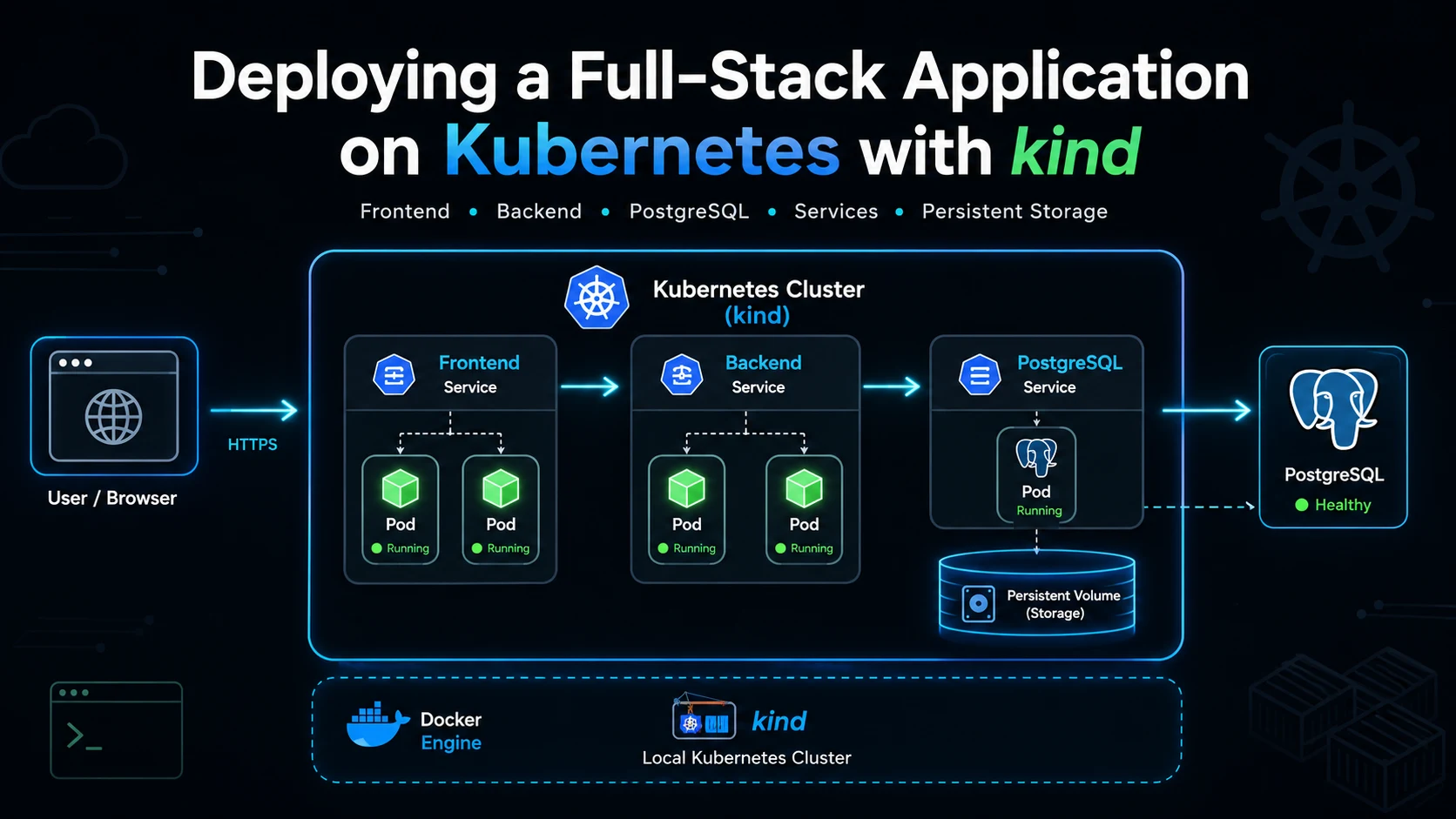
In this project, I deployed a simple full-stack application on Kubernetes using kind.
The application has three main parts:
- Frontend: React/Vite application served by Nginx
- Backend: Node.js API application
- Database: PostgreSQL running inside the Kubernetes cluster
The frontend and backend images are pulled from Docker Hub, while PostgreSQL runs directly as a Kubernetes workload with persistent storage.
Final Architecture
The final deployment looks like this:
                         Internet
                            |
                            | EC2_PUBLIC_IP:8080
                            v
                      AWS EC2 Host
                            |
                     Docker / kind
                            |
                    Host 8080 -> 30080
                            |
                            v
                 +---------------------+
                 |  frontend-service   |
                 |  NodePort :30080    |
                 +----------+----------+
                            |
                 selector: app=incident-frontend
                            |
                  +---------+---------+
                  v                   v
           Frontend Pod 1      Frontend Pod 2
              Nginx :80           Nginx :80
                  |
                  | /api/*
                  v
                 CoreDNS
                  |
                  | backend-service:5000
                  v
                 +---------------------+
                 |   backend-service   |
                 |    Service :5000    |
                 +----------+----------+
                            |
                  +---------+---------+
                  v                   v
            Backend Pod 1       Backend Pod 2
               :5000               :5000
                  |                   |
                  +---------+---------+
                            |
                            | postgres-service:5432
                            v
                    +----------------+
                    |postgres-service|
                    | ClusterIP:5432 |
                    +-------+--------+
                            |
                            v
                      PostgreSQL Pod
                           :5432
                            |
                            v
                      postgres-pvc
                            |
                            v
                     PersistentVolume
Project Structure
I organized the Kubernetes files like this:
incident-k8s/
|
├── kind-config.yml
├── namespace.yml
|
├── postgres-secret.yml
├── postgres-pvc.yml
├── postgres-deployment.yml
├── postgres-service.yml
|
├── backend-deployment.yml
├── backend-service.yml
|
├── frontend-deployment.yml
└── frontend-service.yml
Each file has one specific responsibility. That makes the deployment easier to reason about and debug.
Creating the kind Cluster
The first file is kind-config.yml. This creates the Kubernetes cluster using kind, which means the Kubernetes nodes run as Docker containers.
kind: Cluster
apiVersion: kind.x-k8s.io/v1alpha4

nodes:
  - role: control-plane
    extraPortMappings:
      - containerPort: 30080
        hostPort: 8080
        listenAddress: "0.0.0.0"
        protocol: TCP

      - containerPort: 30081
        hostPort: 8081
        listenAddress: "0.0.0.0"
        protocol: TCP

  - role: worker

  - role: worker
From the EC2/Docker perspective, kind creates Docker containers:
AWS EC2
   |
   +-- Docker
        |
        +-- incident-control-plane
        +-- incident-worker
        +-- incident-worker2
But from the Kubernetes perspective, those containers are nodes:
kubectl get nodesThe important part is the port mapping:
EC2 :8080 -> kind :30080
EC2 :8081 -> kind :30081
Port 30080 is used by the frontend NodePort service. Port 30081 is used by the backend NodePort service.
Create the cluster with:
kind create cluster --name incident --config kind-config.ymlkind-config.yml is not a Kubernetes manifest. It is configuration consumed by kind before Kubernetes resources are applied.
Creating the Namespace
The namespace creates a logical boundary for all resources that belong to this application.
apiVersion: v1
kind: Namespace

metadata:
  name: incident
Apply it:
kubectl apply -f namespace.ymlAfter this, every manifest uses:
metadata:
  namespace: incident
Conceptually, the namespace contains:
incident
|
├── PostgreSQL
├── Backend
└── Frontend
Creating the PostgreSQL Secret
PostgreSQL requires database credentials. Instead of putting them directly inside the Deployment, I used a Kubernetes Secret.
apiVersion: v1
kind: Secret

metadata:
  name: postgres-secret
  namespace: incident

type: Opaque

stringData:
  POSTGRES_USER: incident_user
  POSTGRES_PASSWORD: incident_password
  POSTGRES_DB: incident_db
This provides:
POSTGRES_USERPOSTGRES_PASSWORDPOSTGRES_DB
The PostgreSQL container reads these values when it starts. The backend also reuses the same Secret for its database configuration.
postgres-secret
       |
       +----------------+
       v                v
PostgreSQL Pod     Backend Pods
For a learning environment, this is fine. In a real production setup, secrets should be handled more carefully, and real credentials should not be committed to Git.
Creating Persistent Storage
Containers are temporary. If PostgreSQL stores everything only inside the container filesystem, data can be lost when the container is removed or recreated.
Postgres Pod deleted
        |
        v
Container deleted
        |
        v
Database data potentially lost
So I created a PersistentVolumeClaim.
apiVersion: v1
kind: PersistentVolumeClaim

metadata:
  name: postgres-pvc
  namespace: incident

spec:
  accessModes:
    - ReadWriteOnce

  resources:
    requests:
      storage: 1Gi
The PVC requests 1Gi of persistent storage.
PostgreSQL Pod
      |
      | mount
      v
postgres-pvc
      |
      v
PersistentVolume
At first, the PVC can appear as Pending. In kind, the default StorageClass may use:
WaitForFirstConsumerThat means Kubernetes waits until a Pod actually needs the volume before provisioning and binding it.
PVC created
   |
   v
Pending
   |
   v
Postgres Pod scheduled
   |
   v
Volume provisioned
   |
   v
PVC Bound
Deploying PostgreSQL
Now we can create PostgreSQL itself.
apiVersion: apps/v1
kind: Deployment

metadata:
  name: postgres
  namespace: incident

spec:
  replicas: 1

  selector:
    matchLabels:
      app: postgres

  template:
    metadata:
      labels:
        app: postgres

    spec:
      containers:
        - name: postgres
          image: postgres:16

          ports:
            - containerPort: 5432

          env:
            - name: POSTGRES_USER
              valueFrom:
                secretKeyRef:
                  name: postgres-secret
                  key: POSTGRES_USER

            - name: POSTGRES_PASSWORD
              valueFrom:
                secretKeyRef:
                  name: postgres-secret
                  key: POSTGRES_PASSWORD

            - name: POSTGRES_DB
              valueFrom:
                secretKeyRef:
                  name: postgres-secret
                  key: POSTGRES_DB

          volumeMounts:
            - name: postgres-storage
              mountPath: /var/lib/postgresql/data

      volumes:
        - name: postgres-storage
          persistentVolumeClaim:
            claimName: postgres-pvc
This connects three things:
postgres-secret
       |
       | credentials
       v
PostgreSQL Pod
       |
       | database files
       v
postgres-pvc
The PostgreSQL container listens on port 5432, and its database files are stored under:
/var/lib/postgresql/dataThat path is mounted to the PVC, so the data can survive Pod restarts and replacements.
Creating the PostgreSQL Service
The PostgreSQL Pod has its own Pod IP, but the backend should never depend on that IP. Pods can be recreated, and their IPs can change.
So I created a stable Service:
apiVersion: v1
kind: Service

metadata:
  name: postgres-service
  namespace: incident

spec:
  type: ClusterIP

  selector:
    app: postgres

  ports:
    - protocol: TCP
      port: 5432
      targetPort: 5432
The Service finds the PostgreSQL Pod using this selector:
selector:
  app: postgres
That works because the Pod template has this label:
labels:
  app: postgres
The relationship is:
postgres-service
       |
       | selector: app=postgres
       v
PostgreSQL Pod
I used ClusterIP because PostgreSQL only needs to be reachable from inside the Kubernetes cluster. There is no reason to expose the database directly to the internet.
The backend can now connect to:
postgres-service:5432instead of knowing the PostgreSQL Pod IP.
Deploying the Backend
The backend Docker image is:
shanto78/incident-backend:latestThe Deployment creates two backend replicas.
apiVersion: apps/v1
kind: Deployment

metadata:
  name: incident-backend
  namespace: incident

spec:
  replicas: 2

  selector:
    matchLabels:
      app: incident-backend

  template:
    metadata:
      labels:
        app: incident-backend

    spec:
      containers:
        - name: incident-backend
          image: shanto78/incident-backend:latest

          ports:
            - containerPort: 5000

          env:
            - name: PORT
              value: "5000"

            - name: NODE_ENV
              value: "production"

            - name: DB_HOST
              value: "postgres-service"

            - name: DB_PORT
              value: "5432"

            - name: DB_NAME
              valueFrom:
                secretKeyRef:
                  name: postgres-secret
                  key: POSTGRES_DB

            - name: DB_USER
              valueFrom:
                secretKeyRef:
                  name: postgres-secret
                  key: POSTGRES_USER

            - name: DB_PASSWORD
              valueFrom:
                secretKeyRef:
                  name: postgres-secret
                  key: POSTGRES_PASSWORD
The most important configuration is:
DB_HOST=postgres-service
DB_PORT=5432
In Docker Compose, I previously used:
DB_HOST=databasebecause database was the Docker Compose service name.
In Kubernetes, the equivalent stable name is the Service name:
Docker Compose       Kubernetes
database       ->     postgres-service
CoreDNS allows the backend Pods to resolve that Service name.
incident-backend Deployment
           |
           v
       ReplicaSet
           |
      replicas: 2
           |
     +-----+-----+
     v           v
Backend Pod   Backend Pod
   :5000         :5000
Creating the Backend Service
The two backend Pods need one stable endpoint.
apiVersion: v1
kind: Service

metadata:
  name: backend-service
  namespace: incident

spec:
  type: NodePort

  selector:
    app: incident-backend

  ports:
    - protocol: TCP
      port: 5000
      targetPort: 5000
      nodePort: 30081
The Service finds Pods labeled:
app=incident-backendso both backend Pods become Service endpoints.
              backend-service
                   :5000
                     |
             selector:
          app=incident-backend
                     |
              +------+------+
              v             v
         Backend Pod    Backend Pod
            :5000          :5000
Because the Service uses:
nodePort: 30081and kind maps:
EC2 8081 -> kind 30081the backend can be reached externally during testing:
EC2_PUBLIC_IP:8081
       |
       v
NodePort :30081
       |
       v
backend-service :5000
       |
       v
Backend Pod :5000
This external backend exposure is useful for learning and testing. The frontend reverse proxy does not require browser traffic to access the backend directly.
Configuring Frontend Nginx
The frontend is a static application served through Nginx. Its Docker image includes an Nginx configuration like this:
server {
    listen 80;
    server_name _;

    root /usr/share/nginx/html;
    index index.html;

    location /api/ {
        proxy_pass http://backend-service:5000/api/;

        proxy_http_version 1.1;

        proxy_set_header Host $host;
        proxy_set_header X-Real-IP $remote_addr;
        proxy_set_header X-Forwarded-For $proxy_add_x_forwarded_for;
        proxy_set_header X-Forwarded-Proto $scheme;
    }

    location / {
        try_files $uri $uri/ /index.html;
    }
}
This is an important part of the architecture.
Requests for / serve the frontend. Requests for /api/* are proxied to:
backend-service:5000So the flow becomes:
Browser
   |
   | /api/incidents
   v
Frontend Nginx
   |
   | backend-service:5000/api/incidents
   v
Backend Service
   |
   v
Backend Pod
The browser never needs to understand Kubernetes DNS. Nginx is running inside the cluster, so it can resolve backend-service through CoreDNS.
Deploying the Frontend
The frontend Docker image is:
shanto78/incident-frontend:latestThe frontend Deployment also runs two replicas.
apiVersion: apps/v1
kind: Deployment

metadata:
  name: incident-frontend
  namespace: incident

spec:
  replicas: 2

  selector:
    matchLabels:
      app: incident-frontend

  template:
    metadata:
      labels:
        app: incident-frontend

    spec:
      containers:
        - name: incident-frontend
          image: shanto78/incident-frontend:latest

          ports:
            - containerPort: 80
Nginx runs inside each frontend Pod and serves the built frontend files.
Deployment
    |
    v
ReplicaSet
    |
+---+----------+
|              |
v              v
Frontend     Frontend
Pod 1        Pod 2
:80          :80
Creating the Frontend Service
Finally, I exposed the frontend.
apiVersion: v1
kind: Service

metadata:
  name: frontend-service
  namespace: incident

spec:
  type: NodePort

  selector:
    app: incident-frontend

  ports:
    - protocol: TCP
      port: 80
      targetPort: 80
      nodePort: 30080
The Service finds frontend Pods using:
app=incident-frontendfrontend-service
|
| selector: app=incident-frontend
v
+-----+---------+
| |
v v
Frontend Frontend
Pod 1 Pod 2The kind configuration maps:
EC2 :8080 -> kind :30080and the Service maps:
NodePort :30080 -> Service :80 -> Pod :80Therefore, the complete external path is:
Browser
   |
   v
EC2_PUBLIC_IP:8080
   |
   v
kind mapping 8080 -> 30080
   |
   v
frontend-service
   |
   v
Frontend Pod
Complete Request Flow
When a user opens:
http://EC2_PUBLIC_IP:8080the frontend request follows this path:
Browser
   |
   v
EC2 :8080
   |
   v
kind port mapping
   |
   v
NodePort :30080
   |
   v
frontend-service
   |
   v
Frontend Nginx Pod
   |
   v
index.html / JS / CSS
   |
   v
Browser
Now suppose the frontend requests:
/api/incidentsThe request becomes:
Browser
   |
   | /api/incidents
   v
EC2 :8080
   |
   v
frontend-service
   |
   v
Frontend Nginx Pod
   |
   | proxy_pass
   v
backend-service:5000
   |
   | CoreDNS resolves Service
   v
Backend Pod
   |
   | SQL query
   v
postgres-service:5432
   |
   | CoreDNS resolves Service
   v
PostgreSQL Pod
   |
   v
Database
The response travels back through the same chain:
PostgreSQL
   |
   v
Backend
   |
   v
Frontend Nginx
   |
   v
Browser
That is the full request lifecycle of the deployed application.
Deployment Order
For a completely fresh environment, I used this order:
# 1. Cluster
kind create cluster --name incident --config kind-config.yml

# 2. Namespace
kubectl apply -f namespace.yml

# 3. PostgreSQL configuration/storage
kubectl apply -f postgres-secret.yml
kubectl apply -f postgres-pvc.yml

# 4. PostgreSQL
kubectl apply -f postgres-deployment.yml
kubectl apply -f postgres-service.yml

# 5. Backend
kubectl apply -f backend-deployment.yml
kubectl apply -f backend-service.yml

# 6. Frontend
kubectl apply -f frontend-deployment.yml
kubectl apply -f frontend-service.yml
Conceptually:
Cluster
   |
   v
Namespace
   |
   v
Secrets + Storage
   |
   v
Database
   |
   v
Database Service
   |
   v
Backend
   |
   v
Backend Service
   |
   v
Frontend
   |
   v
Frontend Service
   |
   v
Application accessible
Useful Verification Commands
During deployment, these are the commands worth remembering:
# Everything in the namespace
kubectl get all -n incident

# Pods
kubectl get pods -n incident -o wide

# Deployments
kubectl get deployments -n incident

# Services
kubectl get svc -n incident

# Persistent storage
kubectl get pvc -n incident

# Service endpoints
kubectl get endpointslices -n incident

# Pod details/errors
kubectl describe pod <pod-name> -n incident

# Service details
kubectl describe svc <service-name> -n incident

# Application logs
kubectl logs <pod-name> -n incident

# Follow logs
kubectl logs -f <pod-name> -n incident
Debugging Lessons
One useful lesson from this deployment was knowing which command to reach for based on the failure mode.
If the Pod is Running, but the application is failing:
Pod Running but application failing
        |
        v
kubectl logs
If the Pod shows CreateContainerConfigError:
CreateContainerConfigError
        |
        v
kubectl describe pod
        |
        v
Check Events
If the Pod shows ErrImagePull:
ErrImagePull
        |
        v
kubectl describe pod
        |
        v
Check image/tag/platform
I encountered both configuration and image-platform issues during this deployment, so these were not just theoretical troubleshooting steps.
Final Thoughts
This deployment helped connect several Kubernetes concepts together:
- A kind cluster can expose NodePorts through Docker port mappings.
- Deployments manage replicas through ReplicaSets.
- Services provide stable network names for changing Pods.
- CoreDNS allows applications to communicate using Service names.
- PVCs keep database storage separate from the PostgreSQL container lifecycle.
- Nginx can act as the frontend server and internal API reverse proxy.
The most important mindset shift was moving from “container names” in Docker Compose to “Service names” in Kubernetes. Once that clicked, the full-stack request flow became much easier to understand.